Native Big Screen Experience (Windows / macOS)
Official Native Client provided. No emulator required. Supports keyboard shortcuts and multi-tabling, perfect for professional players.
Download Installer
Click the button. The system will automatically detect and download the correct version (Windows .exe or macOS .dmg).
Run Installation
Run the installer. If Windows Defender shows a warning, click "More info" and then select "Run anyway".
Open the .dmg file and drag the Red Dragon icon into the Applications folder.
Login & Update
First launch may require a few minutes for resource updates. Once updated, log in to start multi-tabling.
Restart (Recommended)
To ensure optimal performance and driver compatibility, it is recommended to restart your computer once after installation before launching the game to reduce black screens or lag.
Mobile Installation Guide
Supports both iOS and Android. iOS users must perform the "Trust Certificate" step after installation.
Register & Download App
First-time users must register and verify their account before downloading the app.

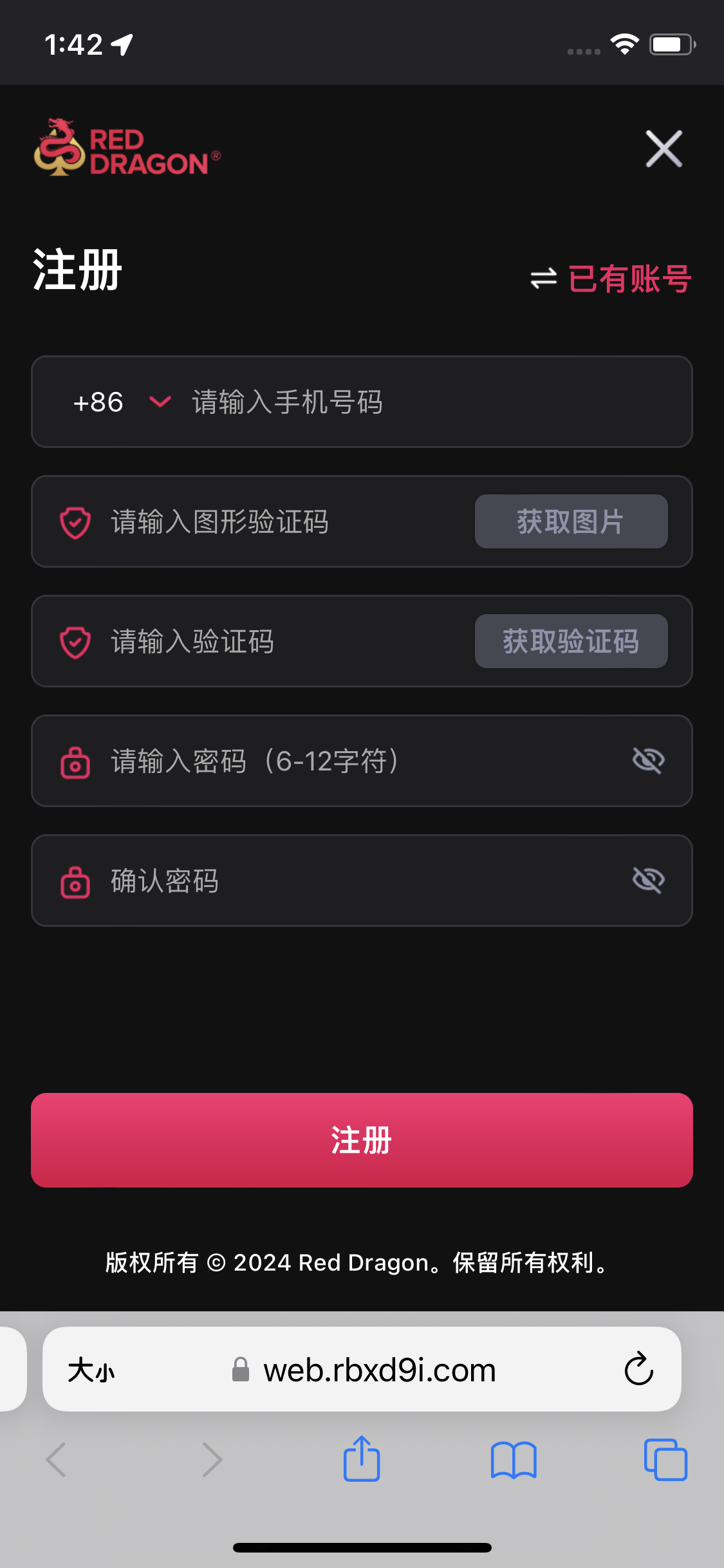
Enter mobile number and set password
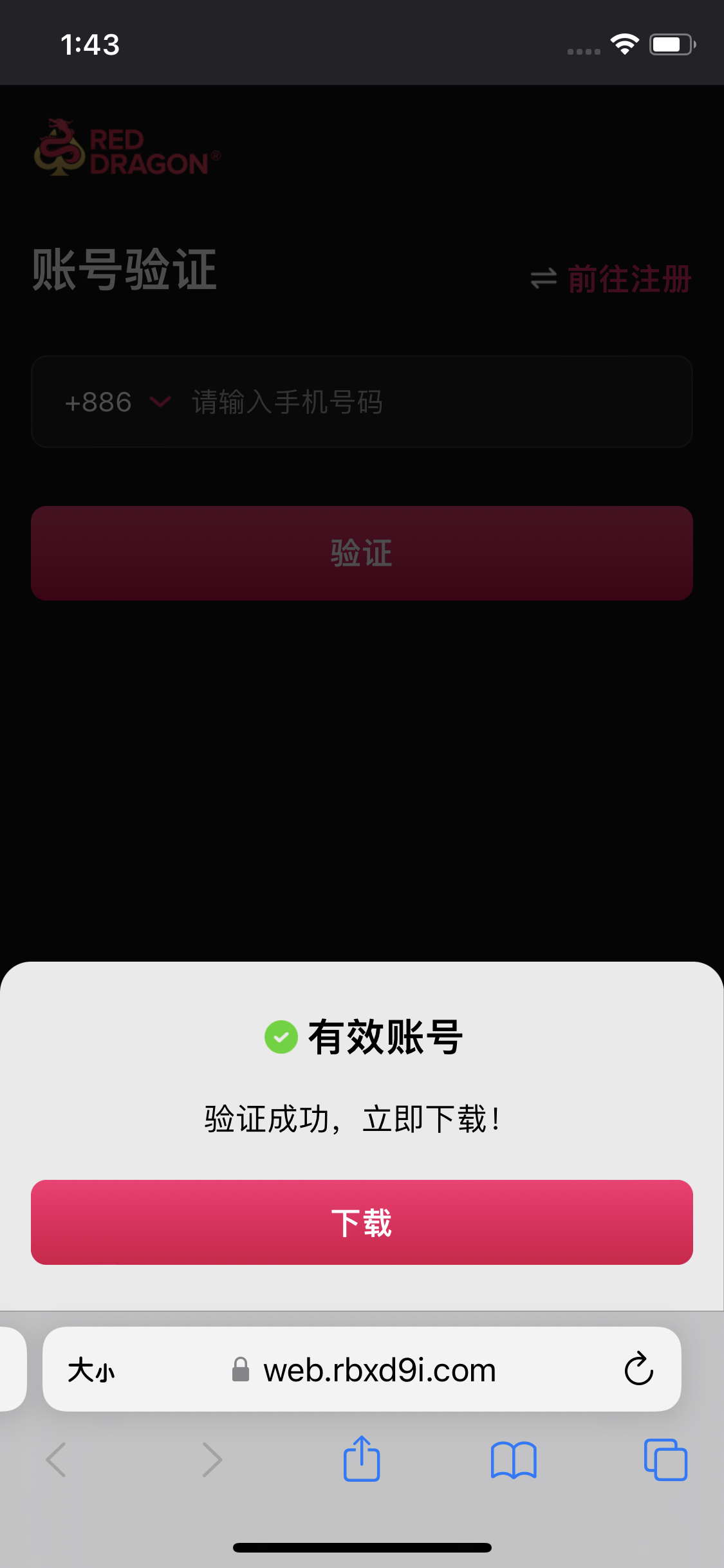
Download after account verification
Install App
After downloading the APK, click to install directly.
Skip to Step 4 after completion
The app will install to your home screen automatically after download.
Please proceed to Step 3
iOS Required: Trust Certificate
If the app shows "Untrusted Enterprise Developer", follow these steps:
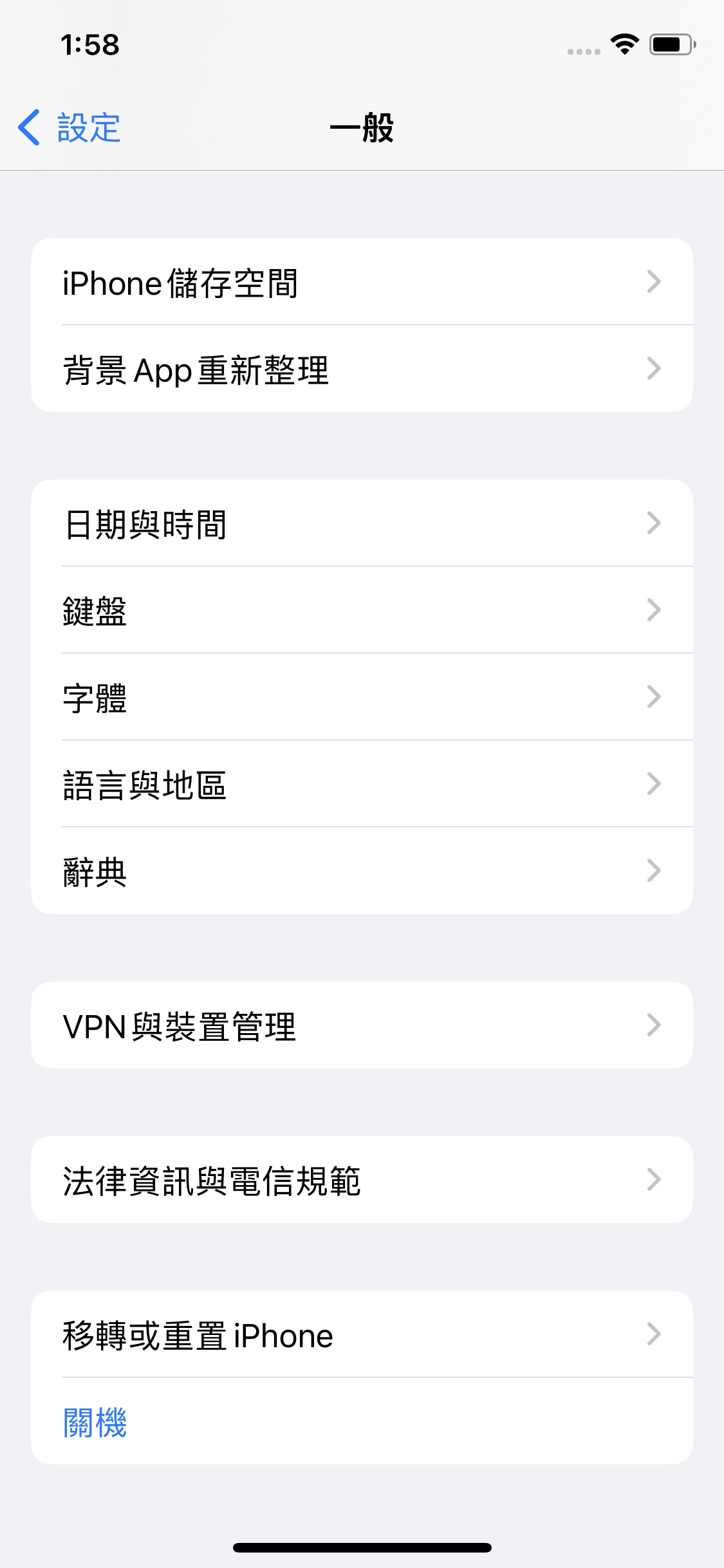
Go to "Settings" > "General"
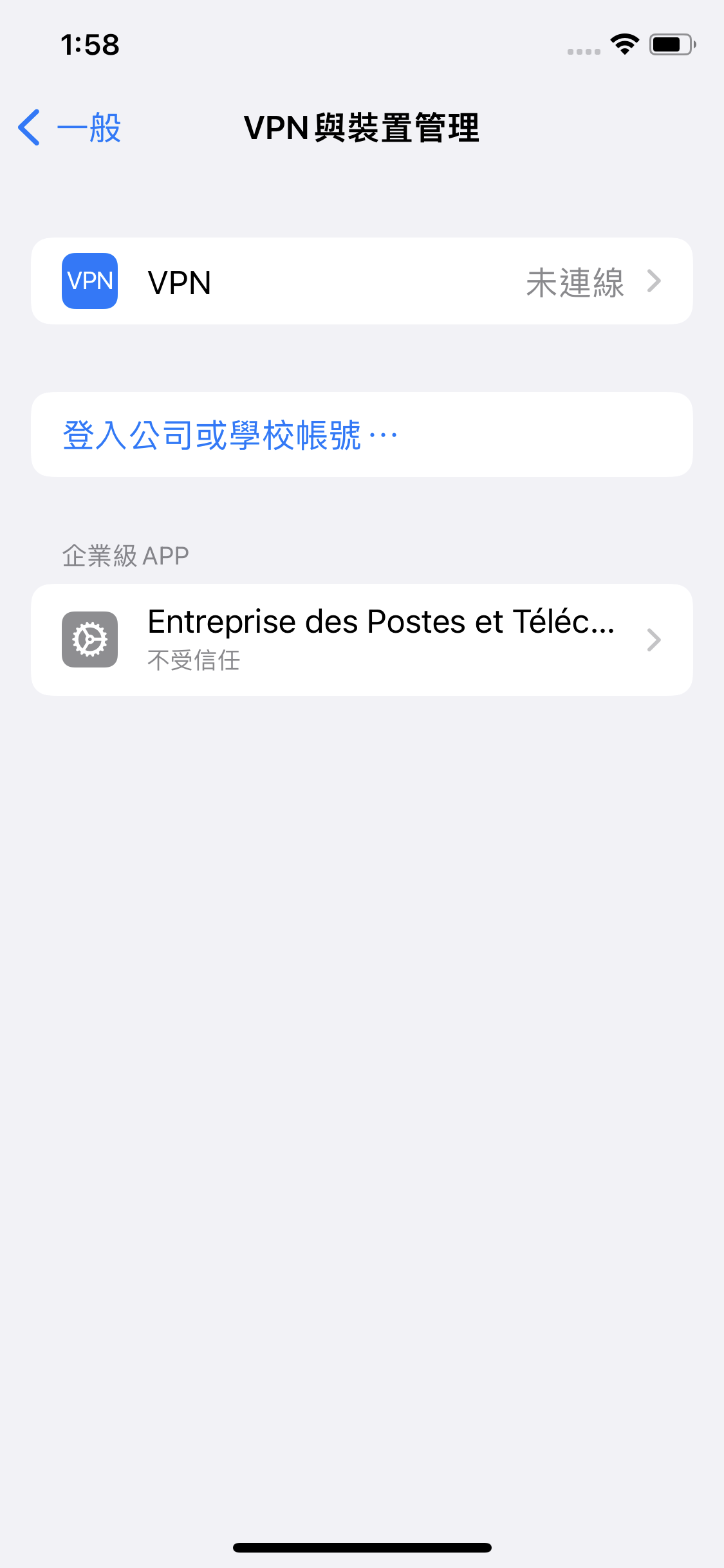
Scroll down to find "VPN & Device Management"
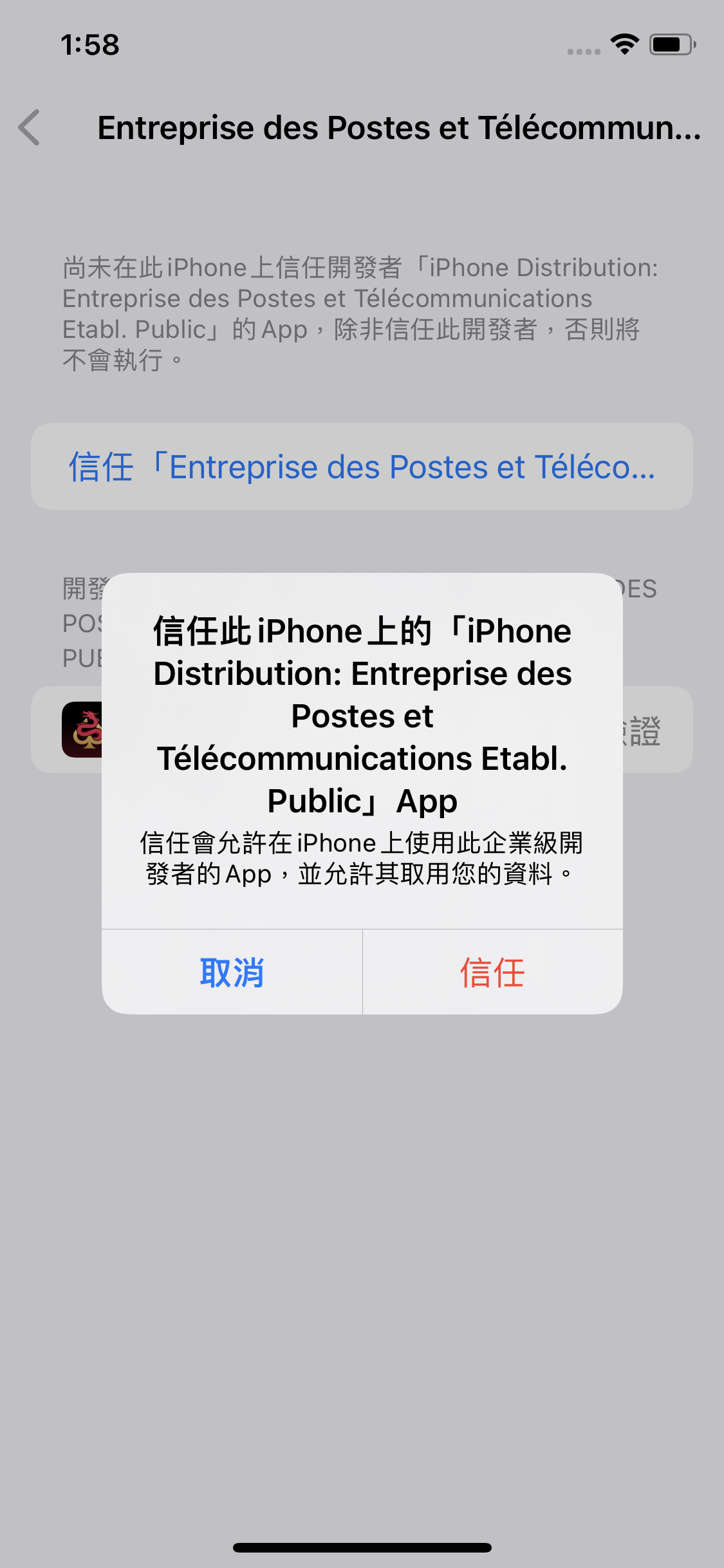
Select the certificate under Enterprise App and tap "Trust"
Launch & Login to Game
After completing the steps above, open the app and login with your registered account.
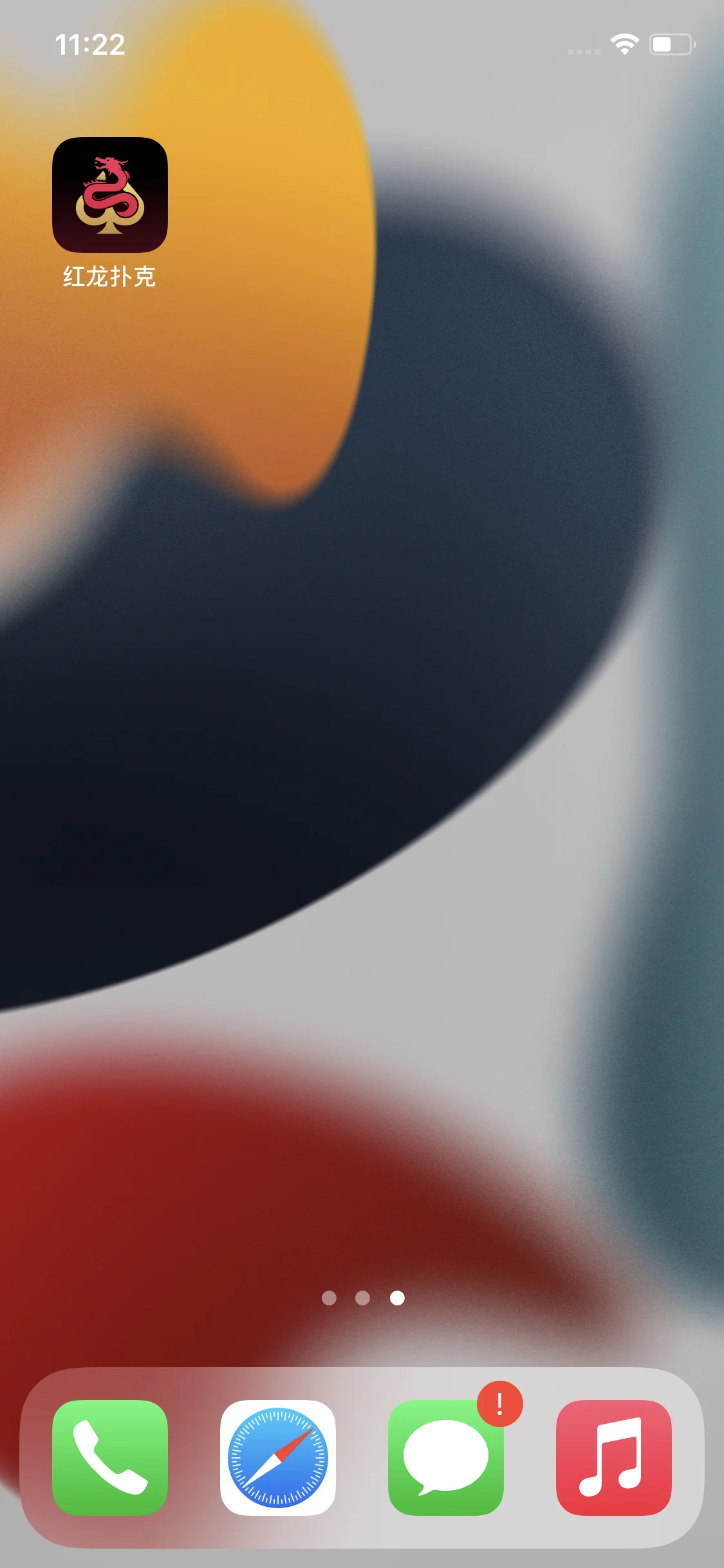
Tap the Red Dragon icon on your home screen
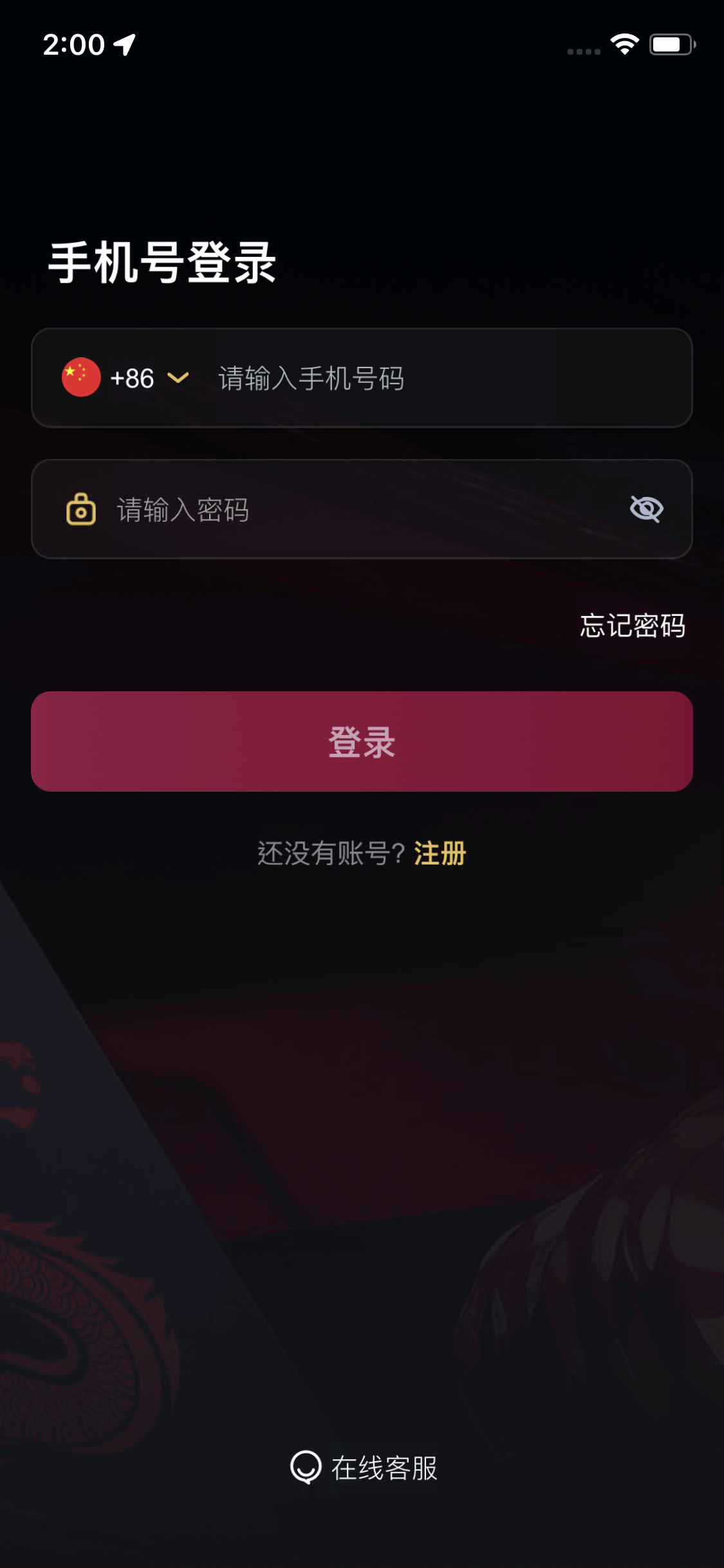
Login with the account you just registered